How to add the chat to a website
The chat is added with one line of code before the closing body tag. The dashboard gives you that line, together with a ready task for your developer, right after sign-up. Below is the order for any site and separately for Tilda, WordPress and 1C-Bitrix.
Updated
Setup order
- 1 Sign up With email, Telegram, Yandex or VK. No card needed.
- 2 Add the site Enter a name and the domain. The chat works on that domain and its www version; your code will not start it on anyone else's site.
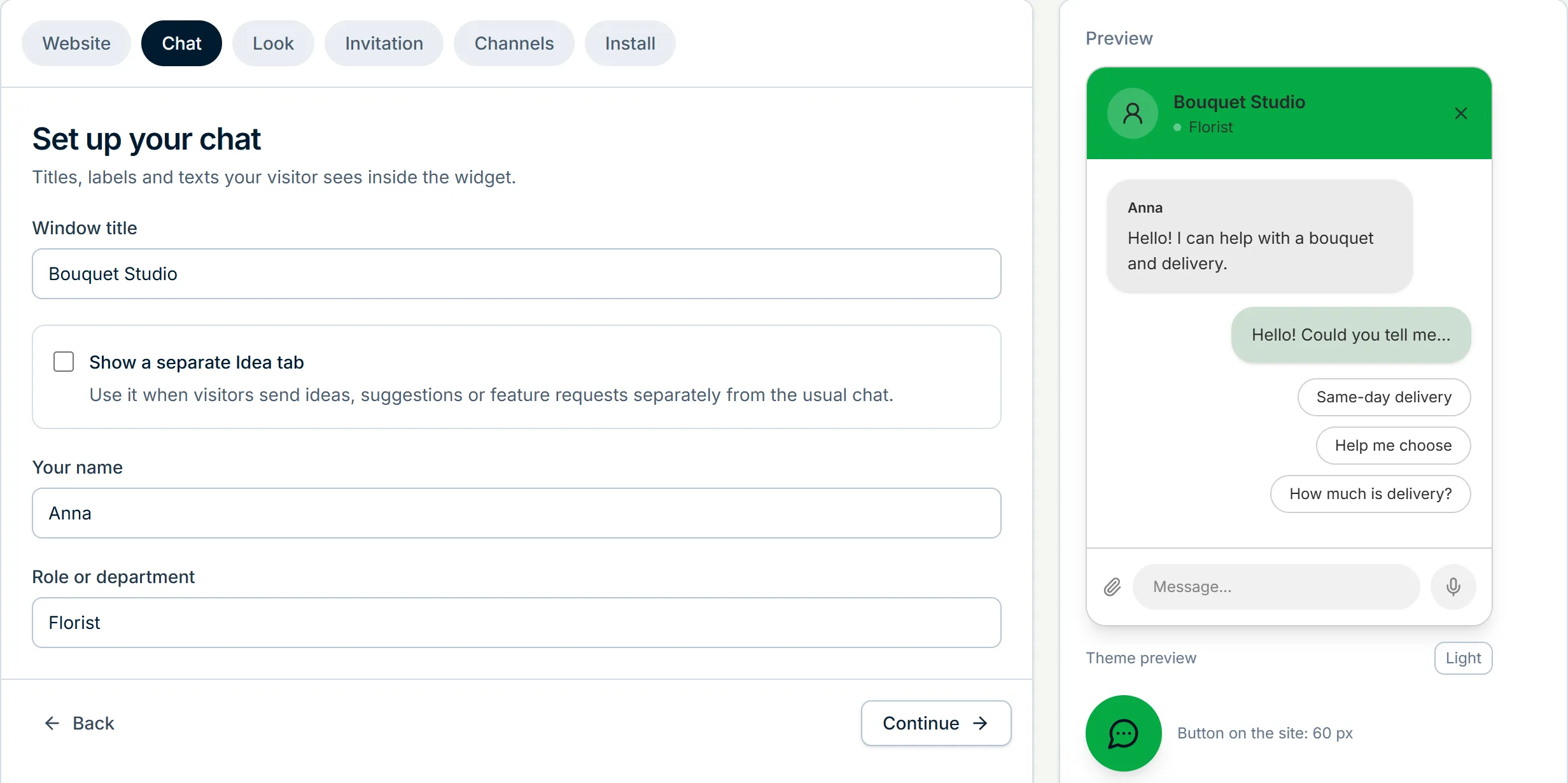
- 3 Set up the chat and its look The window title, the name and role of whoever answers, colours, the button icon and position, an invitation and up to three quick replies, sounds. The preview on the right shows the result.
- 4 Connect Telegram Our bot joins your group with one button, or connect your own with its token. Details are on the Telegram page.
- 5 Paste the code Copy the line from the dashboard into the site template or hand the ready task to your developer.
The snippet
The line goes once into the shared site template, before the closing body tag, and the chat appears on every page. The widget ID is different for every site; the dashboard fills it in.
The script loads with the async attribute and does not delay the page.
The last step of the setup has three tabs: the code itself, a task for a developer or an AI assistant that you can forward as is, and installation through Yandex Tag Manager if it already runs on your site.
<script async
  src="https://api.widgetchat.ru/widget/bozex-support-widget.js"
  data-widget-id="wc_ваш_идентификатор"></script>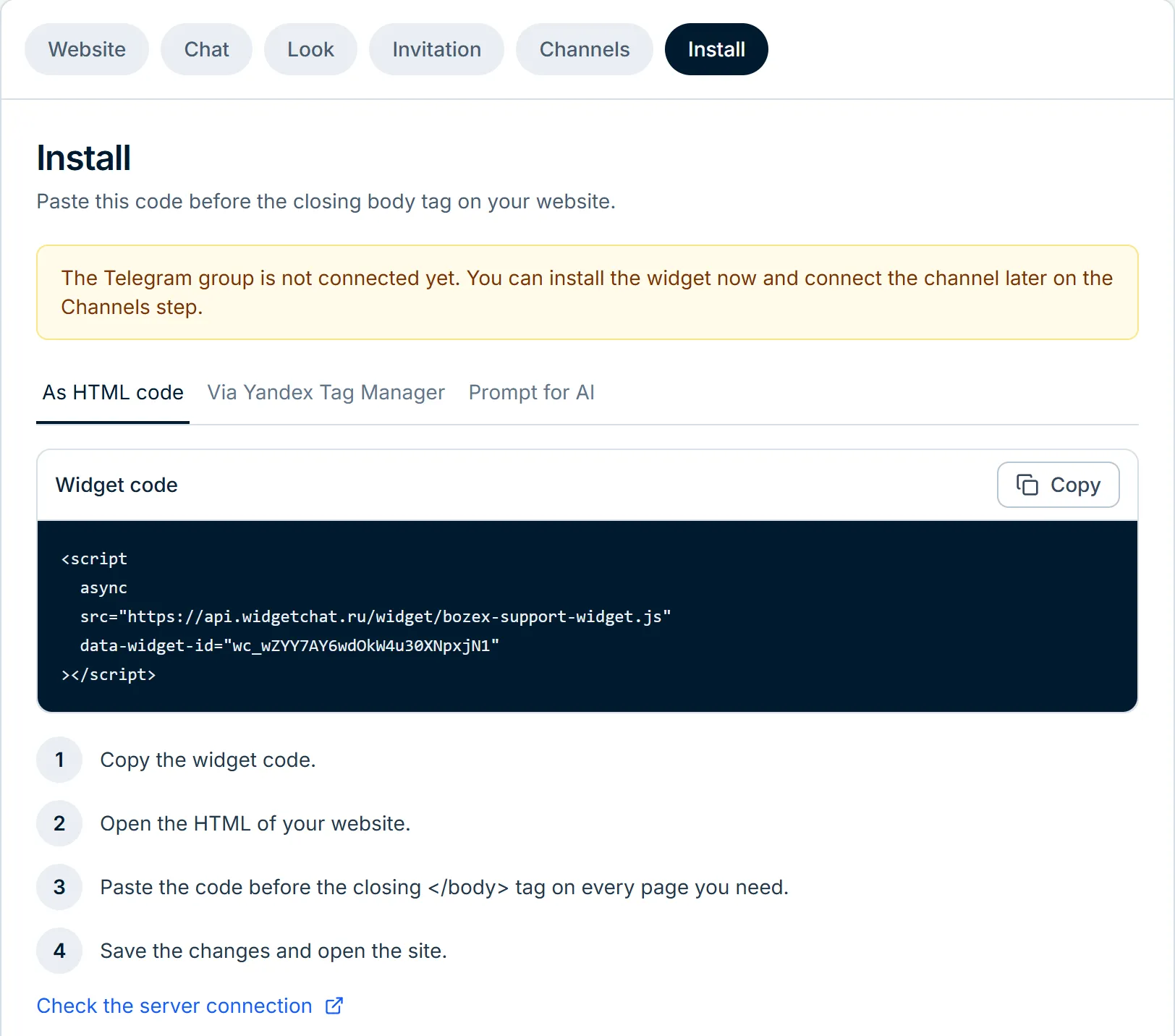
Tilda
- 1 Open the site settings In Tilda: Site settings, the More section, the field for HTML code before the closing body tag.
- 2 Paste the line and save The code is added once and works on every page.
- 3 Publish the pages again Tilda applies settings only after publishing. No publish, no chat on the site.
Custom code in Tilda is available on paid plans only. The widget does not run inside the Tilda editor, so check the published site.
WordPress
The easiest way is our plugin from the WordPress directory: it asks only for the widget ID. Without the plugin, the line goes into the theme footer through a code-insertion plugin or into footer.php of a child theme. Every option and the checks are on a separate page.
1C-Bitrix
- 1 Open the site template Admin area: Settings, Product settings, Sites, Site templates. You need the template the pages with the chat are built from.
- 2 Find the end of the page In the template code that is footer.php or the bottom of the shared template.
- 3 Paste the line before the closing body tag Save the template and clear the site cache, otherwise visitors keep getting the old page for a while.
The front page, the catalogue and the personal area often use different templates. The code is needed in each one where the chat should work.
Other website builders and custom sites
Most website builders have a field for custom code in the site settings, and the line goes there. On a custom site it goes into the shared template. On a single landing page, straight into the page markup before the closing body tag.
Checking it works
- The button is there Open the site in a normal browser window: the button should sit in the corner you chose.
- The message arrived Write to yourself from the chat and check that a topic appeared in the Telegram group.
- The reply came back Answer in the topic, and the message appears in the window without a page reload.
- Analytics goals If Yandex Metrica or Google tags run on the site, the chat sends events there by itself: the window opened, the first message, the support reply. No code changes are needed. In Metrica you still create goals of the JavaScript event type with the ids widgetchat_open, widgetchat_first_message and widgetchat_reply; the full list is in the widget documentation.
If the chat does not appear
- The domain does not match The chat works on the domain from the dashboard and its www version. A subdomain or a second domain we add on request in the chat.
- The code is in the wrong template On some sites the front page and inner pages are built from different templates.
- Cache Clear the site cache and reload without the browser cache. On Tilda, publish the pages again.
- Optimisers and blockers Speed plugins sometimes defer third-party scripts, and ad blockers hide chat widgets. Check in another browser without extensions.
Frequently asked questions
How long does it take?
Usually about ten minutes including the Telegram group. The longest part is waiting for a contractor to paste the line, if they look after the site.
Do I need access to the site code?
You need to be able to paste one line into the template or into the custom code field of the website builder.
Will the chat slow the site down?
The script loads asynchronously and does not delay the page.
Can I show the chat only on some pages?
Yes: paste the line into those pages instead of the shared template.
What if a contractor built the site?
Forward them the task from the last step of the setup: it holds the code, where it goes and how to check it.
Read next
Add the chat to your website
Sign up with email or Telegram, set it up in the dashboard, paste one line of code. Free.